Transfer Manager — Uploads
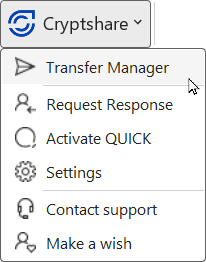
The Transfer Manager can be accessed directly from the Cryptshare drop-down menu in the Outlook ribbon.
Transfer polling
The transfer status displayed in the Transfer Manager is available with live status information for the sender to see. This will help keeping track of the transfer, and to check if the recipients have actually accessed the files.
Synchronize all available transfers
All transfers from the Cryptshare Server will be displayed, not only the ones handled by Cryptshare for Outlook (Classic). This makes it easy to switch between different Cryptshare Clients, while still having an overview of all transfers.
Transfers that are available on the server, but are not available in Cryptshare for Outlook (Classic), are added to the appropriate transfer list. The synchronization is done:
-
when Cryptshare for Outlook (Classic) starts, and
-
when manually refreshing the upload / download tab.
Upload Manager
The Upload Manager allows you to keep track of all the transfers you have provided. Transfers will appear here as soon as the upload process begins, and will remain in the list for a number of days after the retention period on the server has expired. They are then automatically removed from the overview.
| See Secure message and file transfer for instructions in detail on how to send messages and files. |
The most recently sent Cryptshare message appears at the top.
The following information is listed:
-
Subject: The subject is displayed.
-
Tracking ID: The transfer tracking ID.
-
Sent: The date the transfer was created and made available.
-
Sender: Email address of the sender. Most likely, your email address is the one listed here. However, if multiple accounts are associated and you have chosen to list all accounts, the "sender" field can be useful.
-
Available until: After this date, the files are deleted from the server independent if the recipient has downloaded the files or not.
-
Status by Recipient: List of recipients, their email addresses, and which recipient has downloaded which files.
-
Status by Files: Which files the transfer contains, and the recipient’s download status per file.
-
Size: Size of the complete transfer.
-
Security mode: "No password required", "One-time password" or "QUICK"
Icons and meaning

-
Filter by sender account. When using multiple email accounts, the list of upload elements can be filtered by these. This means that the upload elements for all configured email accounts are listed in the list. In addition, all configured email accounts are offered as a selection option. If a specific account is selected, only those download items that have been explicitly sent with this email account will be listed in the upload manager.

-
Use Refresh to scan and reload all the transfers for a specific account, that are present on the Cryptshare Server.
Click Refresh and select the account(s) you want to scan. Click Start search.
Furthermore, it is also possible to clear the transfer list, by pressing Clear list.

-
The recipient didn’t read the transfer.

-
The recipient has partially or fully downloaded or read the transferred files.

-
This particular transferred file has not been downloaded by this recipient.

-
This particular transferred file has been downloaded by this recipient.
Transfer management menu
Each item in the list has an associated menu (click the three dots). From this menu you can manage your uploads.
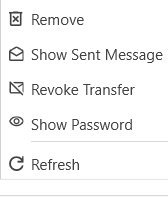
- Remove
-
Deletes the selected item from the transfer history. Sent messages and files remain in the Outlook (Classic) "Sent items" folder. The messages are not deleted. A sent message can still be revoked, provided that the recipient has not yet downloaded it.
- Show sent message
-
Opens the sent message.
- Revoke transfer
-
See Revoke a transfer.
- Show password
-
See Show password.
Show password
You can look up the password in the Transfer Manager after the transfer has been sent.
-
Go to the transfer.
-
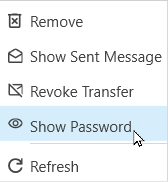
Click the three dots to list the transfer options, and select Show password.
-
Click the eye icon to view the password, or the "copy password" icon to copy the password. The copied password will be deleted from the clipboard after five minutes.