
Server environment
Cryptshare for Outlook on the web requires two server components:
-
An active Microsoft 365 — Exchange Online subscriptions (or similar official products), granting access to Outlook on the web, with active user accounts.
-
The Cryptshare Server with a valid Cryptshare for web license installed.
In order to use Cryptshare for Outlook, the ability to sideload an add-in manifest.xml file is required. The manifest.xml file essentially acts as a bridge between Outlook on the web and the actual add-in location — it defines the button label and the web address to which the button should point.
| On-premise deployment is not supported. Due to technical limitations regarding Outlook on the web, we do not support using Cryptshare for Outlook with on-premise installations of Exchange. |
For Cryptshare integration with on-premise installations, please refer to Cryptshare for Outlook (Classic).
Cryptshare Server
The Cryptshare server provides all add-in resources as well as server-side administration options for various aspects of the add-in. These are:
In order to see if your Cryptshare Server is capable of hosting Cryptshare for Outlook on the web add-ins, please take a look at the Compatibility table.
License
As with all Cryptshare add-on Products, Cryptshare for Outlook also requires a valid license. You can check your license by visiting the license section of the Cryptshare Server administration interface.
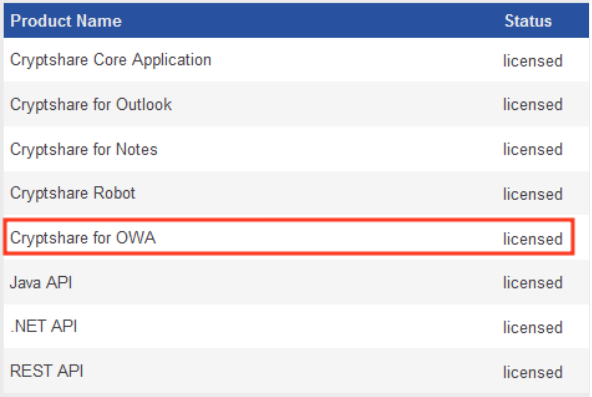
If you do not see a row for Cryptshare for Outlook on the web (former OWA), please get in contact with your Cryptshare sales representative in order to get a new license. Customers owning a Cryptshare Enterprise License or the Cryptshare Business Pack can request a new license at no additional cost.