
Transfer Manager — Downloads
Transfer polling
The transfer status displayed in the Transfer Manager is available with live status information, to see all sent and received transfers with their live status. This will help keeping track of the transfers.
Synchronize transfers
All transfers from the Cryptshare Server from the last 60 days will be displayed, including active, expired, and revoked transfers. This makes it easy to switch between different Cryptshare clients, while still having an overview of all transfers.
The synchronization is done:
-
when Cryptshare for Outlook starts
-
when switching between the Uploads/Downloads tab
-
when clicking the Refresh button in the Uploads/Downloads tab.
Downloads Manager
| See Retrieve files for instructions in detail on how to download the message and its associated files. |
Click the Cryptshare icon to open the Transfer Manager view:

Clicking a Cryptshare email in the Outlook Inbox opens the corresponding transfer in the Downloads Manager.
By clicking a download item in the Download Manager, the view can be expanded or collapsed. In the expanded view you can see details about your transfer.
|
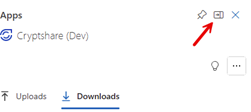
Click here to extend the window for a better overview:
|
Transfer details
-
Subject: The subject seen in the Download Manager has the neutral subject Confidential Message. The subject is visible only for messages that have been sent without "Encrypted confidential message" activated.
-
Transfer state: The status of the transfer (active, revoked, expired). See if the transfer is still available on the server or has been revoked by the sender.
-
Tracking ID: The transfer tracking ID.
-
Received Date: The date on which the notification was received.
-
Sender: The email address of the sender.
-
Recipient: The recipient of this transfer. Most likely, your email address is the one listed here.
-
Expiration date: The files are available for download until this date. After this date, the files are deleted from the Cryptshare server independent if the files have been downloaded or not.
-
Size: Total size of the complete transfer.
-
Security mode: The security mode of the transfer, e.g. password protected or not.
| A recipient cannot see any other recipients of the same message, nor can they view the transfer status of files sent to others. They only have access to their own transfer information. |
Retention period
The retention period is the time frame during which the server keeps the files accessible for download. The end of this period is referred to as the Expiration date. This date is set by the sender when the transfer is created.
After the retention period, the files are deleted from the server independent if the recipient has downloaded the files or not.
Interface elements and actions

-
Hide completed transfers to filter items that have not yet been downloaded. When enabled, completed transfers will be hidden.

-
Click Refresh to update the transfer list with the latest transfers from the Cryptshare Server, for this account.
- Open notification
-
Click the three-dot-menu (…) > Open notification to open the corresponding email body from the inbox folder, and to display the notification email content.