
Secure message and file transfer
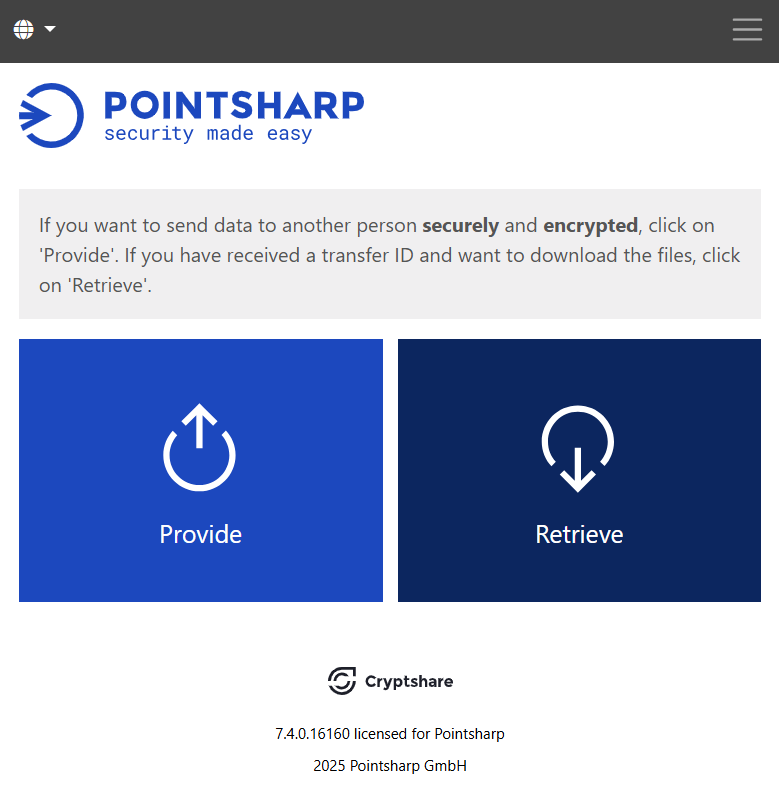
Click Provide to start the preparations of the transfer.
| An asterisk (*) indicates a required field. |
New user - verification
When using Cryptshare for the first time, you will need to verify either by email verification, or via IdP. These options are set in the Server Admin User interface.
| Note that external users with no registered account will only be able to proceed via the email verification option. |
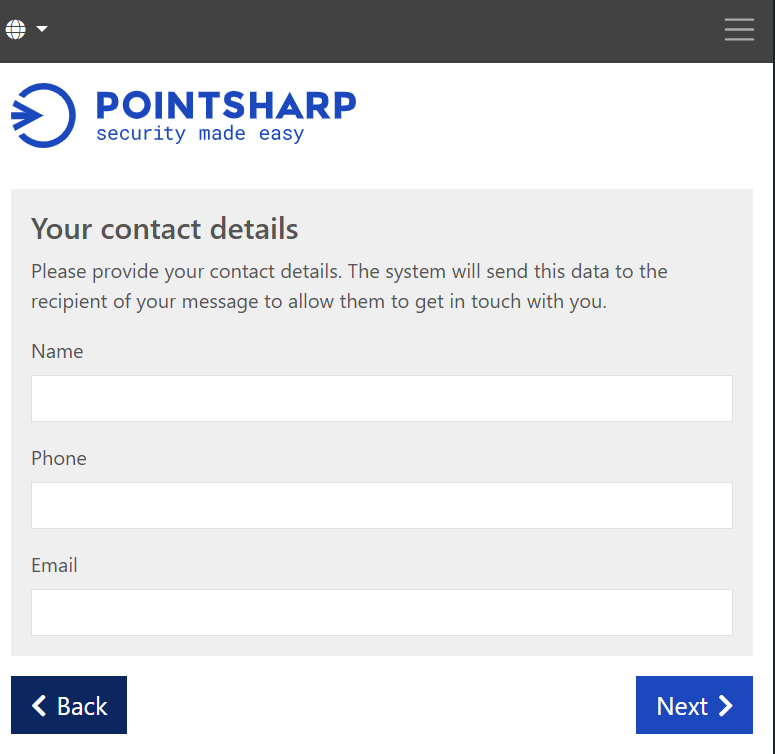
Email verification
When using Cryptshare for the first time, your email address must be verified. Verification is also required every 30 days or whenever your email address is changed. Enter your contact details and click Next to receive a verification code by email.
-
Enter your contact information:
-
Name
-
Phone
-
Email
-
-
Click Next.
-
Having received the code via email, copy it, go to Verification, and paste the code.
-
Click Next.
Existing user - add a new
If a user already exists but a different sender email address is preferred, a new user can be added as follows:
-
Click the drop-down which is showing the currently selected user.
-
Click Create new user.
-
Proceed with the verification procedure.
Changing user details
If details of a specific user need to be changed, click on the edit-symbol next to the username. This will open the edit mode for this particular user allowing to change:
-
The username
-
The phone number
Please note that editing does not allow to change the email address of the current user. In order to use a different sender email address, a new user needs to be added.
Deleting a user
In order to delete an existing user click on the deletion symbol next to the respective username.
After confirmation, all cookies keeping personal information about this user will be deleted. This includes:
-
Verification status including the QUICK verification token
-
Username
-
Phone number
-
Email address
Email address of the recipient
-
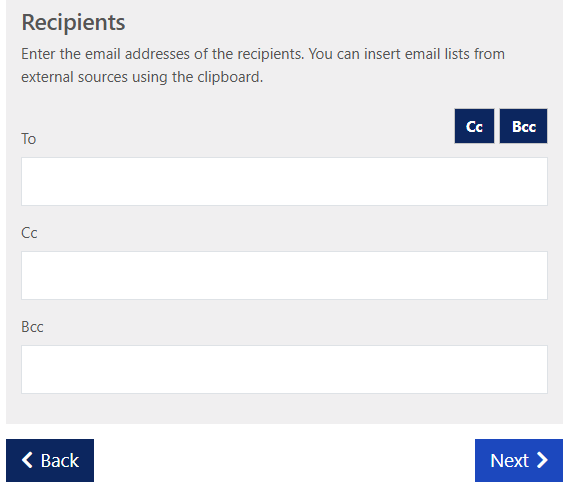
Enter the recipient’s email address, just like when writing a normal email.
-
Separate several recipients with a comma or a space.
-
Send To, copy to: Cc, or as a blind copy to: Bcc
-
Click Next.
Add files and confidential message
With Cryptshare you have the choice of shipping files securely, or transferring a message encrypted. The content of your message is converted into a file in .eml-format.
| The download notification that will be sent via email to the recipient has the neutral subject "Confidential Message". The subject is visible only after download of the encrypted message. |
-
Add confidential message: Click Add. Enter your message and click Save.
-
Add files: By clicking Browse, an Explorer-window opens, and you may browse your PC for files and add them. In the Notification Settings you can choose if the filenames should be exposed or not.
Click Next to move on to the transfer options.
Security settings
Password options
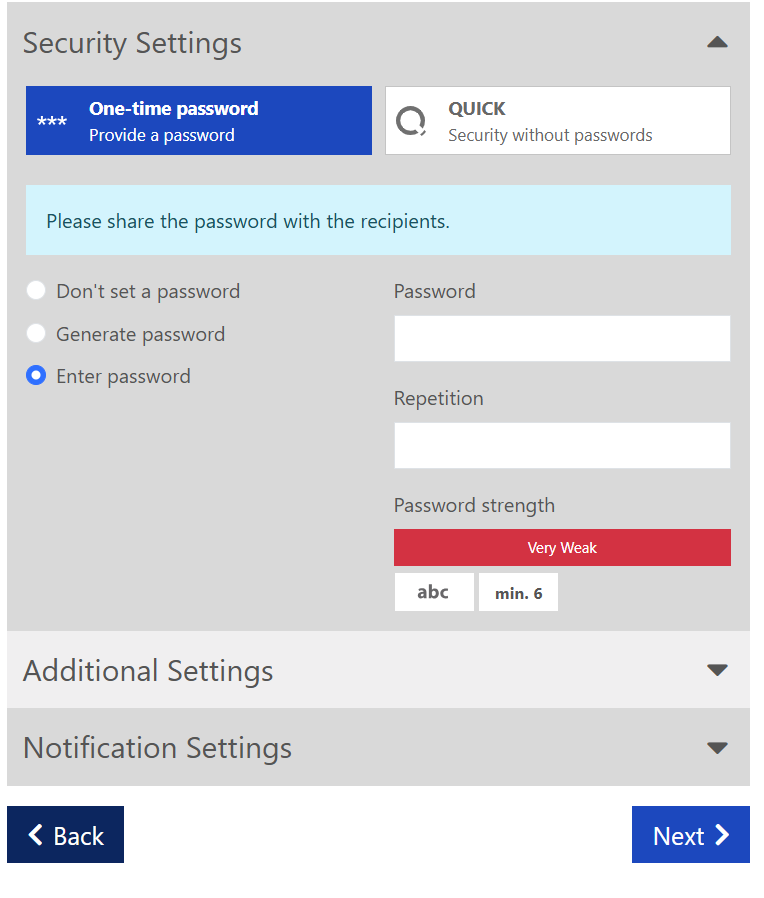
To secure your transfer, you can choose from several password options:
-
The option Don’t set a password enables the sender and the recipient to exchange large files easily, without having to exchange passwords. The data is transferred fully encrypted. However, the level of security is lower, since anyone gaining access to the notification email, has access to the files.
-
You can have the system to Generate a secure password for you. Write down or save this password, it will not be stored anywhere.
-
Or Enter a password of your choice. Select level of strength to be applied.
-
Click the copy password icon to easily retrieve the one-time password:

-
The password preview icon allows you to temporarily display the password you have entered in the password field:
| Share your password with the recipient via telephone or SMS, otherwise they will not have access to the documents or message. |
Additional settings
Set the expiration date to determine for how long the files should be available for retrieval, and the language in which the recipient will receive the notification.
Expiration date
Sent files are only stored on the Cryptshare Server for a certain period of time, during which they can be downloaded by the recipient. After this period, the files are automatically deleted from the server, no matter whether they have been downloaded or not.
The recipient is automatically informed about the selected retention period.
Notification settings
The notification options are:
Inform me as soon as a file has been retrieved
Choose if you want to be notified about the retrieval of the transfer. Please note that this will result in an email sent to you, as a sender, for every download action on the recipient’s end:
-
message has been delivered
-
the message was opened in the content viewer, and
-
the download of the message was started.
If you prefer fewer notification emails, or if you would like to view more detailed information about the transfer, use the Transfer status feature instead.
Unchecked: The sender will receive email notifications about:
-
message has been delivered
Expose filenames in notification emails
Decide whether the name of the files should be exposed in the notification email at the recipient, as well as at the sender.
This option allows you to control whether the file names of your file attachments are part of the notification email to the recipient and the corresponding download confirmation.
Since the notification mails are regular, unencrypted emails, the option should be disabled for security reasons if the file name already contains confidential information.
If selected, the filenames will be visible for both the sender and the recipient.
| The download notification that will be sent via email to the recipient has the neutral subject "Confidential Message". |
The transfer
Before starting the transfer, you will get to preview the notification informing the recipient about your transfer. You can now alter the notification message as you want to present it to the recipient.
Start the transfer by clicking Start transfer.
After all files were uploaded, you can see the details about the transfer in an overview. This window is shown while the transfer is still being encrypted on the Cryptshare Server. When it comes to large files, this may take a while. In the meantime, no other action may be carried out in this window, but you may close it.
Your files are transmitted securely to the Cryptshare Server and are stored there encrypted. The progress of the uploading process is displayed, until Successfully finished.
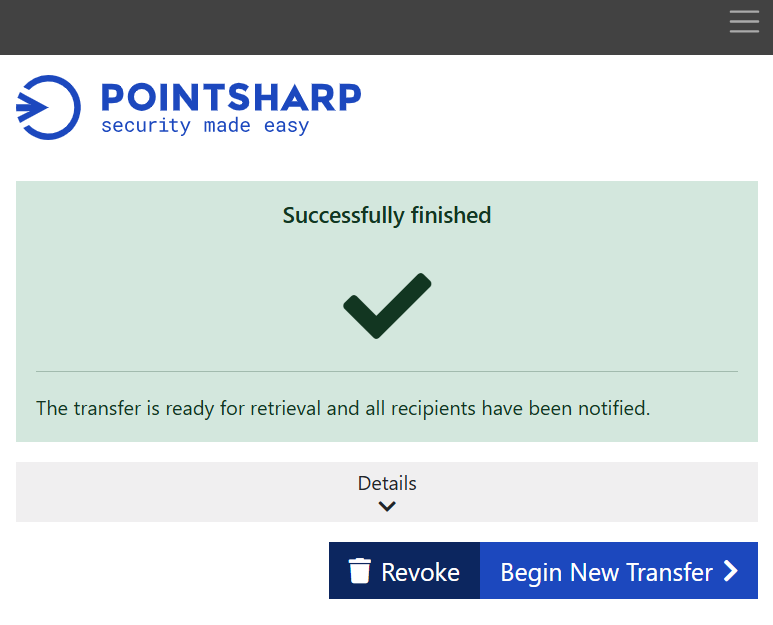
The recipient will receive a notification email with the transfer details, and a link to the message or files to download.
| The sender has the option to revoke the sent message and files. This is done by clicking Revoke. |
Transfer status
The transfer status is available with live status information for the sender to see. This will help keeping track of the transfer, and to check if the recipients have actually accessed the files.
Click the Transfer status button in the notification email to see the transfer overview.
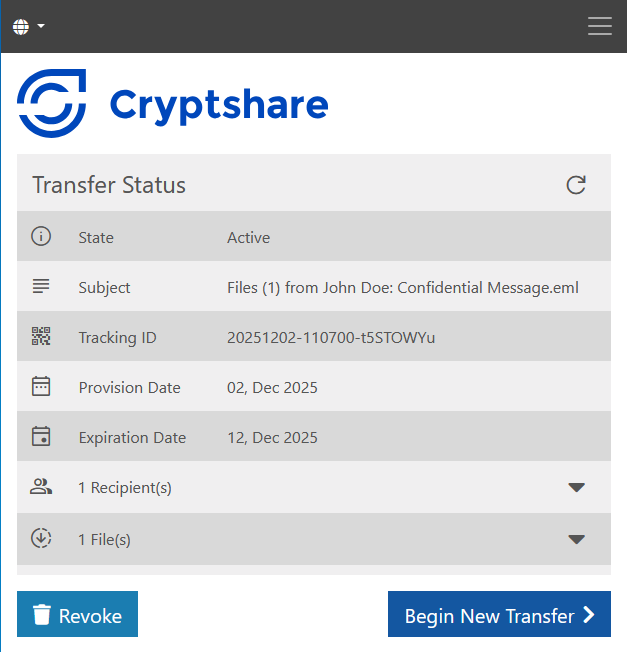
The following information is available:
-
Transfer state: The status of the transfer. Can be one of the transfer states: Active, Expired, Revoked by sender, Deleted by administrative user, Deleted for security reasons, Files are being processed, All files have been removed.
-
Subject: The original notification subject. This will not be provided for deleted or revoked transfers, as it is completely deleted due to data privacy regulations.
-
Tracking ID: The transfer tracking ID.
-
Provision date: The date the transfer was created and made available.
-
Expiration date: After this date, the files are deleted from the server independent if the recipient has downloaded the files or not.
-
Status by Recipient: List of recipients, their email addresses, and which recipient has downloaded which files.
-
Status by Files: Which files the transfer contains, date and time of download per recipient and file.
In Transfer state view, there are also the options to Revoke the transfer, and to Begin a new transfer.
Begin new transfer: Open a new tab to start a new transfer with prefilled recipients list, each recipient email will be listed under its corresponding type (TO, CC, or BCC) as it was in the opened transfer.


