
Retrieve files
The recipient will receive a notification email with the transfer details, and a link to the message or files to download.
-
To retrieve the files, click the link Download Files in the email.

-
The web interface appears, in which the transfer ID has been filled in automatically.
-
Enter the password provided to you by the sender. If the sender did not set a password, move on with the next step.
-
There is a dropdown menu:
-
Download Confidential Message, or
-
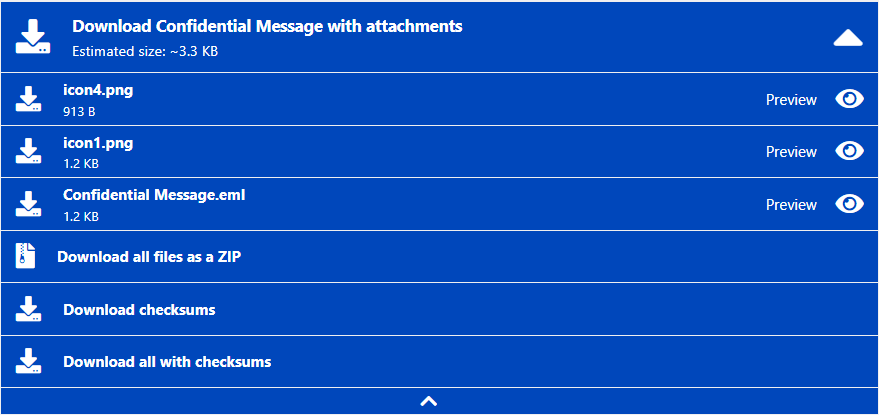
Download Confidential Message with attachments (depending on if there are attachments or not).
-
-
Click the menu to see the downloadable files. There is also an option to preview the Confidential Message and the attachments.
-
With one click you can download all files, download all files as a zip, or download each file individually by clicking the name of the file.
Transfer status
The recipient can view transfer details, but only for their own files.
-
Sender: Display name. (This will not be provided for deleted/revoked transfers, as it is completely deleted due to data privacy regulations).
-
Tel: Sender’s phone number. (This will not be provided for deleted/revoked transfers, as it is completely deleted due to data privacy regulations).
-
Email: Sender’s email address.
-
Subject: Shows the original transfer subject.
-
Tracking ID: The transfer tracking ID.
-
Provision date: The date the transfer was created and made available.
-
Expiration date: See Retention period.
-
Transfer status for received files: Lists each file included in the transfer for this recipient. Per-file status icon indicates whether the file is available to download or has already been downloaded.
| Recipients cannot see any other recipients of the same message, nor can they view the transfer status of files sent to others. They only have access to their own transfer information. |
Reply: Opens the reply page to the sender in a new browser Tab.
Download: Opens the known recipient download page in a new browser Tab.
Icons and meaning

-
The recipient has partially or fully downloaded or read the transferred files.

-
The recipient didn’t read the transfer.

-
This particular transferred file has been downloaded by this recipient.

-
This particular transferred file was not downloaded by this recipient.
Retention period
The retention period is the time frame during which the server keeps the files accessible for download. The end of this period is referred to as the Expiration date. This date is set by the sender when the transfer is created.
After the retention period, the files are deleted from the server independent if the recipient has downloaded the files or not.