
Tokens
An OATH authentication method requires each user to have a token, in order to be able to complete an authentication. Pointsharp ID supports any token that complies with the OATH token standard, and can provision tokens to its users.
There are several ways to distribute a token to a user:
-
An administrator can send the token to the user.
-
The user can send a token to themselves using the User Portal.
-
Pointsharp ID can use Live Provisioning to automatically provision a token to a user depending on a value in a Directory attribute.
Pointsharp ID token management
There are general settings which applies to all tokens, and settings for the distribution of each token type.
| Press the Help button for detailed information on each field and function. |
Add general settings for all tokens
The general settings apply to all tokens. To configure the general settings for tokens, follow these steps:
-
Start Pointsharp ID Admin GUI as an administrator.
-
Click the Tokens tab.
-
Click General Settings in the Pointsharp ID token management window.
-
Initial OATH Window Size: Set this system-wide setting (used by all OATH authentication methods) when the user authenticates with a certain OATH token for the very first time. By using this setting, customers can re-use tokens in a simple and seamless way. In contrast to the OATH Window Size setting, which is configured on the authentication method, this setting is only used the first time (Pointsharp ID holds information about the "initial counter" so it can determine whether the token has been used or not by a certain user).
-
Unique Token Check: Enable this checkbox when there is a requirement that an OATH token must NOT be associated to more than one user at the time.
-
Live Provisioning Separators: Set the separator characters to use when interpreting the user attribute value (stored in the User Storage) when performing Live Provisioning. This character list is used when splitting the value to deploy multiple OATH tokens per user. For example the value
windowsmobile,hardware:123|javaunsignedwould require this setting to be,|in order to function properly. Default is|. -
Live Provisioning Code digits: Set the default OTP length in the OATH Tokens when deployed to the user in Live Provisioning.
-
-
Click Apply in the bottom-right corner to apply the configuration.
-
Go to the General tab.
-
Restart. A Restart can be done from anywhere in the GUI by pressing CTRL-R.
For more information about Live Provisioning, see the OATH authentication method documentation.
Pointsharp Login
These settings are used by Pointsharp ID whenever a configuration for a Pointsharp Login client is created.
| Parameter | Description |
|---|---|
Request URL |
The URL used by the client when sending its OTP to the server. Example: https://example.org/path |
Add OTP Authenticator |
Automatically add one OTP authenticator together with enrollment or QR scanning. If the user already has it, new authenticator will be created and added. |
Time-based OATH
Pointsharp ID supports time-based OATH which, unlike event based tokens, change their one-time password as time progress.
These settings are used when a time-based OATH token is used for authentication. The time-based OATH token calculates a one-time password based on time, by calculating the number of timesteps since the so-called Epoch for the token.
Pointsharp ID comes with one pre-configured time-based OATH setting, which is the RFC 6238-compliant timestep of 30 seconds. This is used for Google Authenticator and all other authenticator apps.
It is possible to add additional time-based OATH settings for the case when the OATH token is using a timestep of 60 seconds. This is evaluated from top to bottom and the OATH Token name matching is controlling what settings to use. Click the Add, Edit, and Remove button to manage these time-based OATH settings.
| Parameter | Description |
|---|---|
SHA Length |
Specify the SHA length and its algorithm to use, for example, SHA-1, SHA-256 or SHA-512. |
Default Values |
Click timestep button 30 secs or timestep button 60 secs to restore the default values for time-based OATH tokens. |
Token Name Prefix |
Token Name Prefix that must match for this setting to take effect.
This can be used for time-based OATH tokens that are using the 60 second timestep.
Note that the default, last time-based OATH setting, must not be changed from the wild card pattern |
TOTP Counter Window |
Defines the timestep window that Pointsharp ID will test when validating a time-based OATH one-time password. For example a value of 5 means that the timesteps corresponding to -5, -4, -3, -2, -1, 0, 1, 2, 3, 4 and 5 are tested. When the OTP is found, this adjustment timestep is stored for the user and the next OTP calculation will adjust its "center" when calculating the next OTP. When the adjustment is equal to the TOTP Counter Window (or larger), the system will use a doubled value for TOTP Counter Window (to allow for larger drift values than this window). The default value is set to 5. |
TOTP Initial Counter Window |
Set this to the timestep window that Pointsharp ID will test when validating a time-based OATH one-time password when the OATH token is used for the first time. The default value is set to 15. |
TOTP Seconds Per Timestep |
Set this setting to define the number of seconds per timestep in the time-based OTP calculation. The default value is set to 30. |
TOTP Epoch Timestep |
Set this to the epoch timestep. According to the time-based OATH RFC standard in January 1st of 1970, this value is 2071186560. Note that for some OATH tokens using the timestep 60 seconds, this epoch value should be set to 1035593280. The default value is set to 2071186560. |
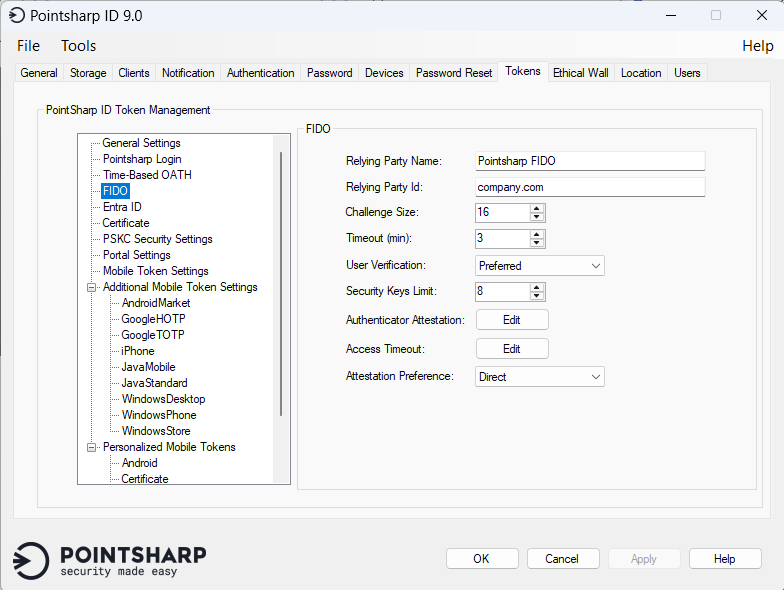
FIDO
These settings are used by Pointsharp ID whenever a configuration for a FIDO security key is created.
See FIDO — How to configure and use for more information.
Entra ID
These settings are used by Pointsharp ID whenever a configuration for an Entra ID security key is created.
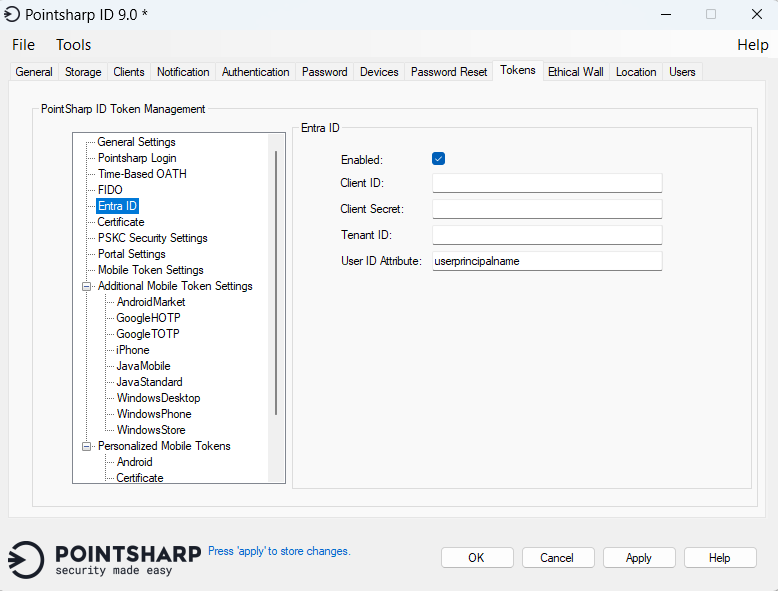
| Parameter | Description |
|---|---|
Enabled |
Enable to use Entra ID. |
Client ID |
The Client ID is a public identifier. |
Client Secret |
The client secret is a secret known only to the application and the authorization server. |
Tenant ID |
Is a unique, globally unique identifier (GUID), for a specific organization’s instance of a Microsoft cloud service. |
User ID Attribute |
The attribute value to be used as the unique User ID for Entra ID. |
Certificate
These settings are used by Pointsharp ID whenever a configuration for a security key (YubiKey) certificate is created.
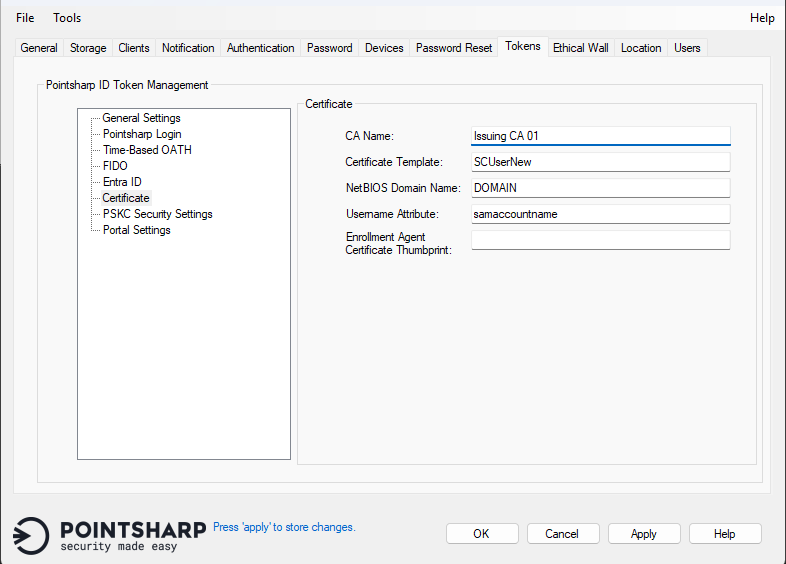
| Parameter | Description |
|---|---|
CA name |
Set the name of the Issuing CA Server. |
Certificate Template |
Certificate template to be used for enrollment. (This is not the "Template Display Name".) |
NetBIOS Domain name |
Set the NetBIOS Domain name for the ID Server. |
Username Attribute |
Default example |
Enrollment Agent Certificate Thumbprint |
The thumbprint of the issued Enrollment Agent Certificate, present in the local machine store. |
PSKC Security settings
Portable Symmetric Key Container (PSKC)
Configure the OATH token security setting and click the OK button for the crypto feature, which deploys the decryption functionality for the encrypted file. For testing purposes, click Test Encryption Key/Password to test the encryption key on the defined pskc file.
To specify pskc file, click Browse and file browser window will pop up in the /bin/tokens folder, showing files only with extension *.pskc. The format of the *.pskc files is unencrypted or encrypted PSKC standard.
| All pskc files must be in the installation folder /bin/token. |
| Parameter | Description |
|---|---|
Name |
Set a display name for the pskc file. |
Filename |
Choose the encrypted file to be configured. |
Encryption Type |
The encryption type of the file.
|
Encryption Key/Password |
The Encryption Key/Password used for decryption of the encrypted file. |
Portal settings
Here are the settings for the token distribution using the Pointsharp Web Portals: Admin Portal and User Portal. These settings are related to the visibility of the activation code and whether the token should be sent using the configured notification method for the token or not.
| Parameter | Description |
|---|---|
Activation Code Display Method |
Set the default display method for the activation code. The selected value will determine how, or if, the activation code can be displayed in a portal at token distribution. Note that a token that is not configured using an activation code, will not be affected by this setting. Enabled display methods are: Image: Displays the activation code as an image representation. None: Will not display the activation code at all (Will set Use Notification Method to true). Text: Displays the activation code as text representation. The default value is set to: Image. |
Display Download URL |
Enable this checkbox when there is a requirement that the download URL should be displayed to the user at mobile token distribution. |