
Local Database configuration
This part is performed the first time the Access Gateway UI starts up, and a wizard will guide you through this step. The default database setup is only aimed for the specific Gateway itself, and is only accessible locally on the Gateway Server itself.
If this initial step has not been performed, and no Local Database is created, it can be done again using the Start Cluster Wizard.
-
Click Database.
-
Choose Start Cluster Wizard. Either from the Quick start on the main page, or from Database > Start cluster wizard.
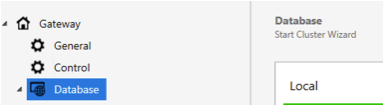
or:

-
Start the Wizard, and click Next.
-
Choose Local Database and click Next to complete the wizard.
To verify this, open the Access Gateway Admin GUI and click Database on the left-hand side. Expand Local to see the Local Database setup. An example of a standard configuration with no Cluster Setup:

| Property | Description |
|---|---|
Enabled |
When session database is disabled, then an in-memory cache solution MemoryCache is used. But this solution is then unable to share its memory between processes/servers. Default: Enabled |
Batch Mode |
You can write documents to the database at a higher rate by using the batch option. This collects the document writes together in memory (on a per-user basis) before they are committed to disk. By default, database flushes the in-memory updates once per second. Default: Disabled |
Username |
The username required at authentication when connecting to the session database. |
Password |
The password required at authentication when connecting to the session database. |
FQDN |
The hostname to the session database on the local machine. Default: localhost |
IP Address |
The IP address to the session database on the local machine. Default: 127.0.0.1 |
HTTP Port |
HTTP port number to the session database on the local machine. Default: 5984 |
SSL |
To use SSL when communicating with the database. |
HTTPS |
HTTPS port number to the session database on the local machine. Default: 6984 |
Certificate File (.pfx) |
The Certificate the database use for SSL, private key needs to be included and password protected with AES256-SHA256. |
Private Key Password |
The private key password used for the certificate. |
Revision Limit |
When a CouchDB document is updated, the new version gets a new revision number, while the old one stays in the database. Note that reducing the revisions limit, increases the risk of getting conflicts during replication (CouchDB default: 1000). Pointsharp Default: 1 (As per default, replication is disabled, and low revision limit is used). |
See also: