
FIDO — How to configure and use
FIDO support and usage
Pointsharp currently supports FIDO for web resources published in the Gateway Server and also the MFA Adapter for ADFS.
It can be used with external security keys from Feitian, Titan and YubiKey, as well as be used with on-device authenticators such as Windows Hello.
Configuration in Pointsharp ID — token setup
-
Start the PSID Admin GUI.
-
Go to the tab Tokens.
-
Click FIDO.
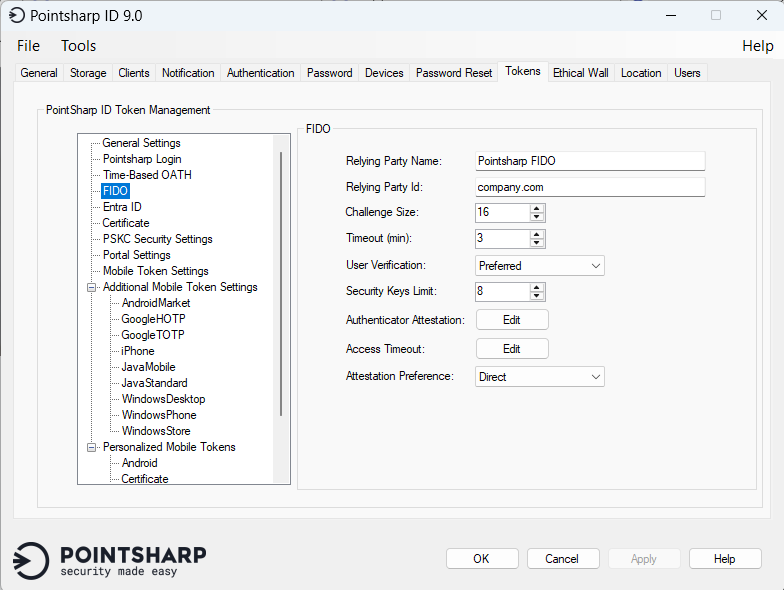
Change the Relying Party Name and Relying Party ID to fit your company names.
| Parameter | Description |
|---|---|
Relying Party Name |
This name is used when adding a new FIDO security key. |
Relying Party Id |
This id is used to decide which domain is allowed to be used for registration/authentication with the FIDO security key via Pointsharp ID. |
Challenge Size |
The length of challenge to be used when doing attestation/assertion. The default value is set to 16. |
Timeout |
The time that the caller is willing to wait for the call to complete. This is treated as a hint, and may be overridden by the client. The default value is set to 3 minutes. |
User Verification |
Required: This value indicates that the Relying Party requires user verification for the operation and will fail the operation if the response does not have the UV flag set. Preferred: This value indicates that the Relying Party prefers user verification for the operation if possible, but will not fail the operation if the response does not have the UV flag set. Discouraged: This value indicates that the Relying Party does not want user verification employed during the operation (for example,, in the interest of minimizing disruption to the user interaction flow). The default value is Preferred. |
Security Key Limit |
How many security keys users can have. |
Access Timeout |
Configuration on if the registered security key should have a access timeout or not. |
Attestation Preference |
In the context of FIDO, attestation involves the authenticator issuing an attestation statement that contains a cryptographic signature and other data about the authenticator itself. The Relying Party uses an attestation conveyance preference, to tell which type of attestation information it wants; none, indirect, direct, or enterprise, offering different levels of detail and anonymization. None: This value indicates that the Relying Party is not interested in authenticator attestation. For example, in order to potentially avoid having to obtain user consent to relay identifying information to the Relying Party, or to save a roundtrip to an Attestation CA. Indirect: The Relying Party prefers verifiable attestation statements, but allows the client to decide how to obtain such attestation statements. This means that the client may replace the authenticator-generated attestation statements with attestation statements generated by an Anonymization CA, in order to protect the user’s privacy, or to assist Relying Parties with attestation verification in a heterogeneous ecosystem. Direct: This value indicates that the Relying Party wants to receive the attestation statement as generated by the authenticator. Enterprise: This value indicates that the Relying Party wants to receive an attestation statement that may include uniquely identifying information. |
Large Blob |
A FIDO large blob (large binary object), part of the FIDO Client to Authenticator Protocol (CTAP) 2.1 standard and exposed in WebAuthn via the largeBlobs extension, is a mechanism for a website (Relying Party) to store arbitrary, opaque data on a FIDO security authenticator. |
Discoverable Credentials |
A FIDO discoverable credential, also known as a resident key or a passkey, is a type of cryptographic credential where both the public and the private key material are securely stored in persistent memory directly on the FIDO security authenticator itself. |
Configuration in Pointsharp ID - authentication method
-
Start the PSID Admin GUI.
-
Go to the tab Authentication.
-
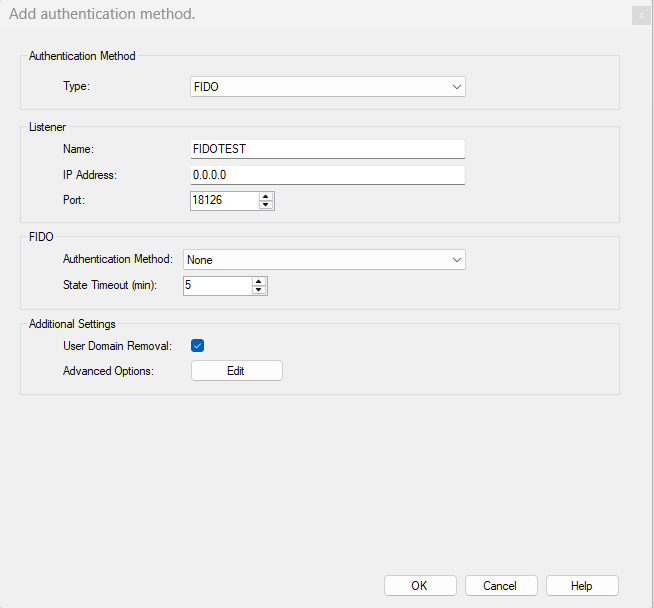
Click Add and choose FIDO as the Authentication method.
-
The value Name is a Friendly Name (and is the name that will be seen in the Access Gateway later on).
-
IP Address is only needed to be entered if the Pointsharp ID Server should use a specific network card with its specific IP. Default leave as it is.
-
Set the Port for this authentication method to accept incoming authentication requests on. Port number does not need to be edited.
-
Choose the Authentication method to be used for first step authentication. None if passwordless is to be used.
-
Set the timeout in minutes for the user session.
-
Login by using username from Discoverable Credentials in the security key.
-
Click OK when done, and go to the tab General and restart the service.
Registering tokens — IIS manager and application settings
The process for registering a FIDO token is done in the User Portal, so the first thing to do is to enable the option FIDO token.
There are two options:
-
hardware tokens, and
-
on-device authenticators.
Do as follows:
-
Start the IIS Manager on the Pointsharp ID Server.
-
Expand the sites and click User Portal.
-
Open the Application Settings for the User Portal site.
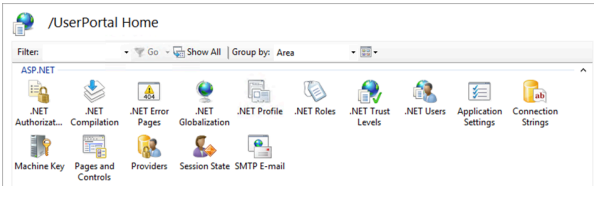
-
Locate the value
SECURITY_TOKEN_SELECTABLE_TYPESand double-click to edit.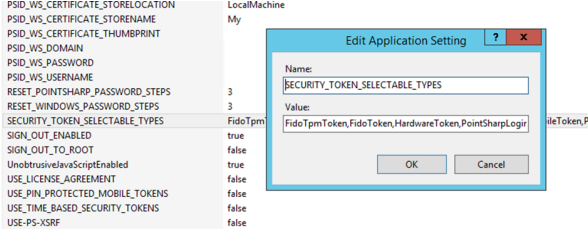
-
FidoTpmToken is on-device authenticators such as Windows Hello. FidoToken is external security keys. Add one or both exactly as shown in screenshot above. Case-sensitive!
-
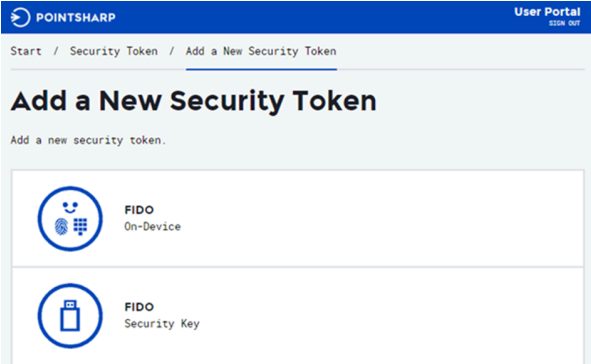
The configuration in User Portal is now done and the option for FIDO should now be seen in the User Portal when adding new tokens.
Adding or edit FIDO authentication on Access Gateway Server
The next step is to add the FIDO authentication method as an option. This is done on the Access Gateway.
Create the FIDO authentication module manually
Create a Form-based authentication (modForms) using FIDO authentication method:
-
Right-click Modules and select Add Module to run the Module wizard.
-
Select Authentication and then Form-based Authentication.
-
Name the module configuration. This will be displayed in the list of module configurations.
-
Add Authentication method: Select FIDO.
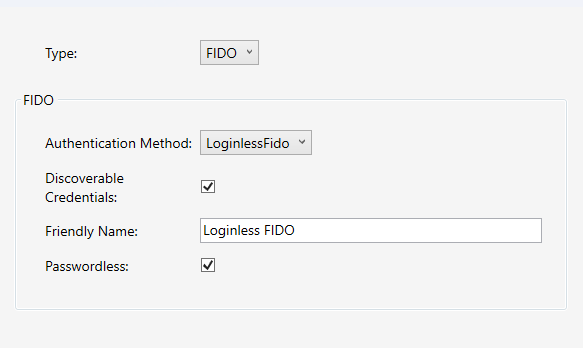
| Property | Description |
|---|---|
Authentication Method |
The name of the authentication method to call on the Pointsharp ID. The selected authentication method has to support being used with FIDO authentication. |
Discoverable Credentials |
Removes username input and gets username from security key via Discoverable Credentials. |
Friendly Name |
A user-friendly name to be shown when authenticating. |
Passwordless |
Defines if this method is passwordless or not. |
-
Click Next and Apply.
-
The Form-based Authentication module (
modForms) with FIDO authentication method is now listed under Modules > Authentication, ready to be added to a Listener Rule.
Add FIDO when setting up a new rule on a Listener
-
Run the Start Listener Configuration Wizard
-
Choose Microsoft Exchange Server and click Next.
-
Choose Outlook Web Application (OWA), and click Next.
-
Create a new Listener, or select from existing Listeners.
-
KCD options: We recommend to select "This Gateway is not a member of the domain and performs KCD". Click Next to continue setting up the KCD service account.
-
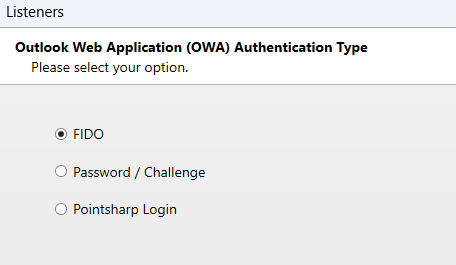
When Authentication type is selected, choose FIDO:
Add FIDO to an existing OWA rule
This example shows how to change authentication method to OWA, or to add FIDO as an additional option on an already existing OWA Listener.
-
Open up the OWA Listener and the
/owa/rule.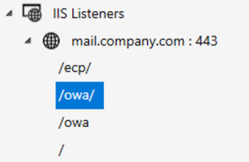
-
Right-click the
modFormsmodule and choose Go to module.
-
In the
modFormsmodule under Authentication Methods, click Add and add the newly created FIDO Authentication method. -
Click Save and then Publish to complete the Gateway configuration.
MFA Adapter
When FIDO is used in combination with the MFA Adapter - simply add the new FIDO Authentication Method created in the PSID Admin GUI in the MFA Adapter configuration file as a regular authentication method.
Please see Secure ADFS Access
Authenticator attestation
A whitelist of allowed FIDO authenticators by defining friendly name and AAGUID (FIDO2).
The default value is All:* (Allow all).
| Name | Version | FIDO2 AAGUID |
|---|---|---|
Windows Hello |
Software Authenticator |
6028B017-B1D4-4C02-B4B3-AFCDAFC96BB2 |
Windows Hello |
VBS Software Authenticator |
6E96969E-A5CF-4AAD-9B56-305FE6C82795 |
Windows Hello |
Hardware Authenticator(TPM) |
08987058-CADC-4B81-B6E1-30DE50DCBE96 |
Windows Hello VBS |
Hardware Authenticator(TPM) |
9DDD1817-AF5A-4672-A2B9-3E3DD95000A9 |
YubiKey 5 (USB-A, No NFC) |
5.1.X |
cb69481e-8ff7-4039-93ec-0a2729a154a8 |
YubiKey 5 (USB-A, No NFC) |
5.2.X |
ee882879-721c-4913-9775-3dfcce97072a |
YubiKey 5 NFC |
5.1.X |
fa2b99dc-9e39-4257-8f92-4a30d23c4118 |
YubiKey 5 NFC |
5.2.X |
2fc0579f-8113-47ea-b116-bb5a8db9202a |
YubiKey 5 Nano |
5.1.X |
cb69481e-8ff7-4039-93ec-0a2729a154a8 |
YubiKey 5 Nano |
5.2.X |
ee882879-721c-4913-9775-3dfcce97072a |
YubiKey 5C |
5.1.X |
cb69481e-8ff7-4039-93ec-0a2729a154a8 |
YubiKey 5C |
5.2.X |
ee882879-721c-4913-9775-3dfcce97072a |
YubiKey 5C Nano |
5.1.X |
cb69481e-8ff7-4039-93ec-0a2729a154a8 |
YubiKey 5C Nano |
5.2.X |
ee882879-721c-4913-9775-3dfcce97072a |
YubiKey 5Ci |
5.2.X |
c5ef55ff-ad9a-4b9f-b580-adebafe026d0 |
Security Key By Yubico |
5.1.X |
f8a011f3-8c0a-4d15-8006-17111f9edc7d |
Security Key By Yubico |
5.2.X |
b92c3f9a-c014-4056-887f-140a2501163b |
Security Key NFC |
5.1.X |
6d44ba9b-f6ec-2e49-b930-0c8fe920cb73 |
Security Key NFC |
5.2.X |
149a2021-8ef6-4133-96b8-81f8d5b7f1f5 |