
Transfer Manager — Uploads
Transfer polling
The transfer status displayed in the Transfer Manager is available with live status information, to see all sent and received transfers with their live status. This will help keeping track of the transfer, and to check if the recipients have actually accessed the files.
Synchronize transfers
All transfers from the Cryptshare Server from the last 60 days will be displayed, including active, expired, and revoked transfers. This makes it easy to switch between different Cryptshare clients, while still having an overview of all transfers.
The synchronization is done:
-
when Cryptshare for Outlook starts
-
when switching between the Uploads/Downloads tab
-
when clicking the Refresh button in the Uploads/Downloads tab.
Uploads Manager
The Uploads Manager allows you to keep track of all the transfers you have provided. Transfers will appear here as soon as the upload process begins, and will remain in the list for ten days after the retention period on the server has expired. They are then automatically removed from the uploads overview.
| See Secure message and file transfer for instructions in detail on how to send messages and files. |
Click the Cryptshare icon to open the Transfer Manager view:

Clicking a Cryptshare email in the Outlook Sent Items folder opens the corresponding transfer in the Uploads Manager.
The most recently sent Cryptshare transfer appears at the top.
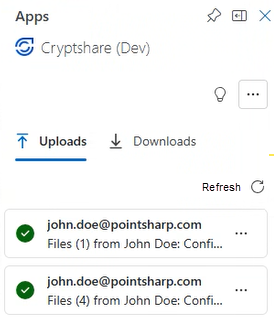
By clicking an upload item, the view can be expanded or collapsed. In the expanded view you can see details about your transfer.
Transfer details
-
Transfer state: The status of the transfer (active, revoked, expired). See if the transfer is still available on the server or has been deleted.
-
Tracking ID: The transfer tracking ID.
-
Provision Date: Date and time of sending the transfer.
-
Sender: Email address of the sender. Most likely, your email address is the one listed here. However, if multiple accounts are associated, and you have chosen to list all accounts, the "sender" field can be useful.
-
Expiration date: After this date, the files are deleted from the server independent if the recipient has downloaded the files or not.
-
 Status by Recipients: List of recipients, their email addresses, and if the recipient has downloaded their files or not.
 -
 Status by Files: Which files the transfer contains, and download status per file and recipient.
 -
Size: Size of the complete transfer.
-
Security mode: The security mode of the transfer, e.g. password protected or not.
Interface elements and actions

-
Click Refresh to update the transfer list with the latest transfers from the Cryptshare Server, for this account.

-
The recipient didn’t open the transfer.

-
The recipient has partially or fully downloaded or read the transferred files.

-
This particular transferred file has not been downloaded by this recipient.

-
This particular transferred file has been downloaded by this recipient.
- Revoke transfer
-
Click the three-dot-menu (…) > Revoke transfer to revoke a transfer. See Revoke transfer for a complete instruction about revoking a transfer.
There is no revoke option for non-active transfers. - Show sent message
-
Click the three-dot-menu (…) > Show sent message to open the corresponding email body from the sent folder, and to display the email content.