Applications - Applications
View all applications in the system by clicking on "Self-Service | Applications" in the menu. Here, you have the option to filter all applications by type:
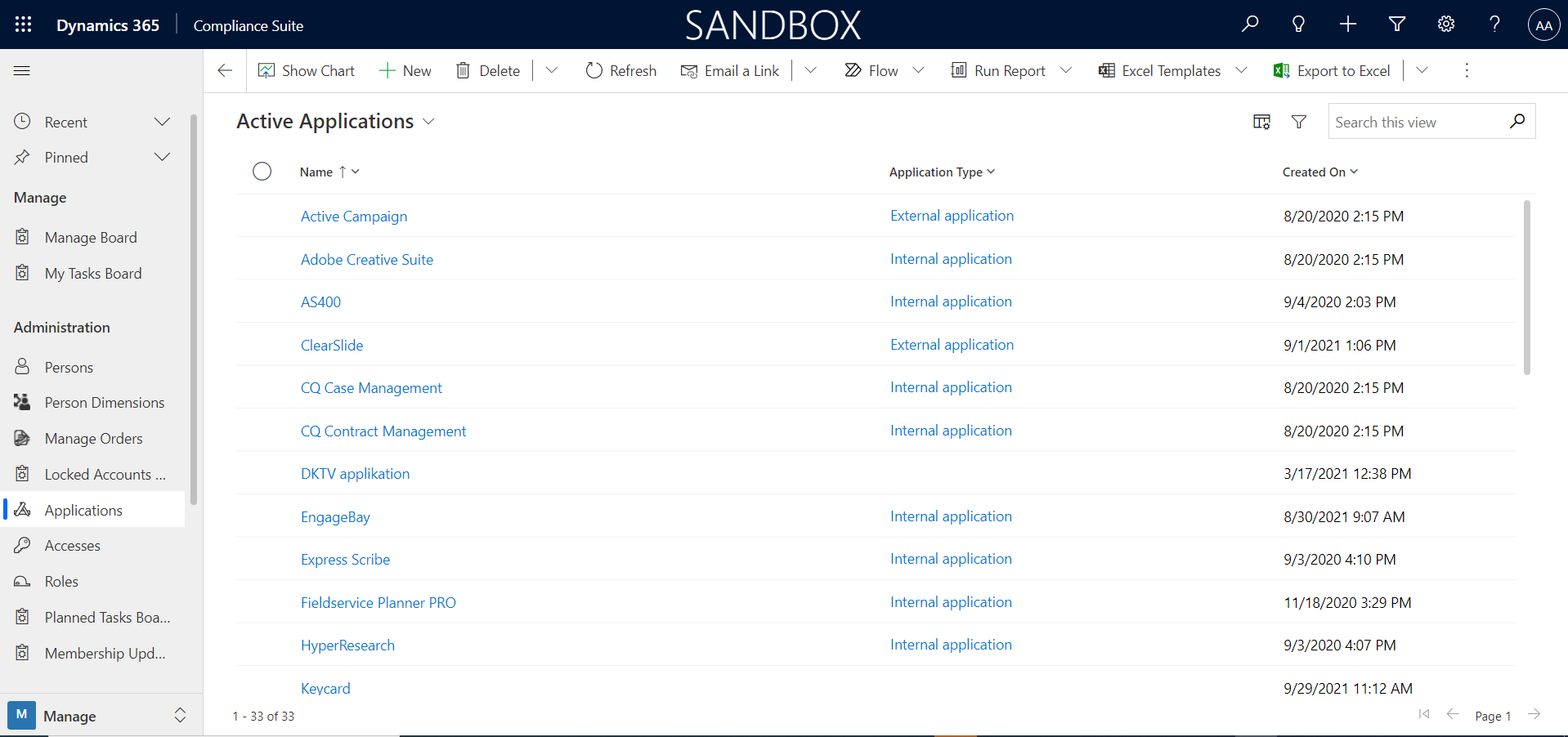
Applications are used to organize role management of accesses and to document registrations of personally identifiable master data.
Compliance Suite distinguishes between "system" and "application".
-
System is identity-carrying and typically contains one or more group concepts, as well as one or more applications that use the identity and/or groups. Examples of systems are "Active Directory Domain Services" or "Entra ID".
Compliance Suite supports bidirectional connectors as a concept against group concepts in systems, e.g., ADDS groups or Office 365 groups. -
Application is used as an umbrella term for one or more levels of access represented by roles. Examples of applications include "Axapta" or "Navision", which uses the ADDS system as an identity carrier for authentication, and a mix of local setup and ADDS groups for authorization in the application.
Access to an application can be requested by requesting access to the role.
Finally, applications are also one of several registration points in relation to the documentation of personally identifiable master data in the GDPR module of Compliance Suite.
It is recommended to create applications in Compliance Suite for:
-
The applications to which users need access and which allow them to request access, or where there is a task of deploying/establishing access and removing it again.
-
Applications (internal, external or paper-based) that contain personally identifiable master data that are required to be documented under the GPDR.
-
Applications for which it is desired to document which users have access.
-
Roles with expiry dates where notification is requested 1-14 or 30 days before the expiry date.
For a description of GDPR documentation in relation to master data use as per documentation, please refer to the GDPR module of Compliance Suite
Access management and documentation functionality
Applications guide users involved in the process of approving and deploying accesses in Compliance Suite and are related to e-mail notifications in Compliance Suite.
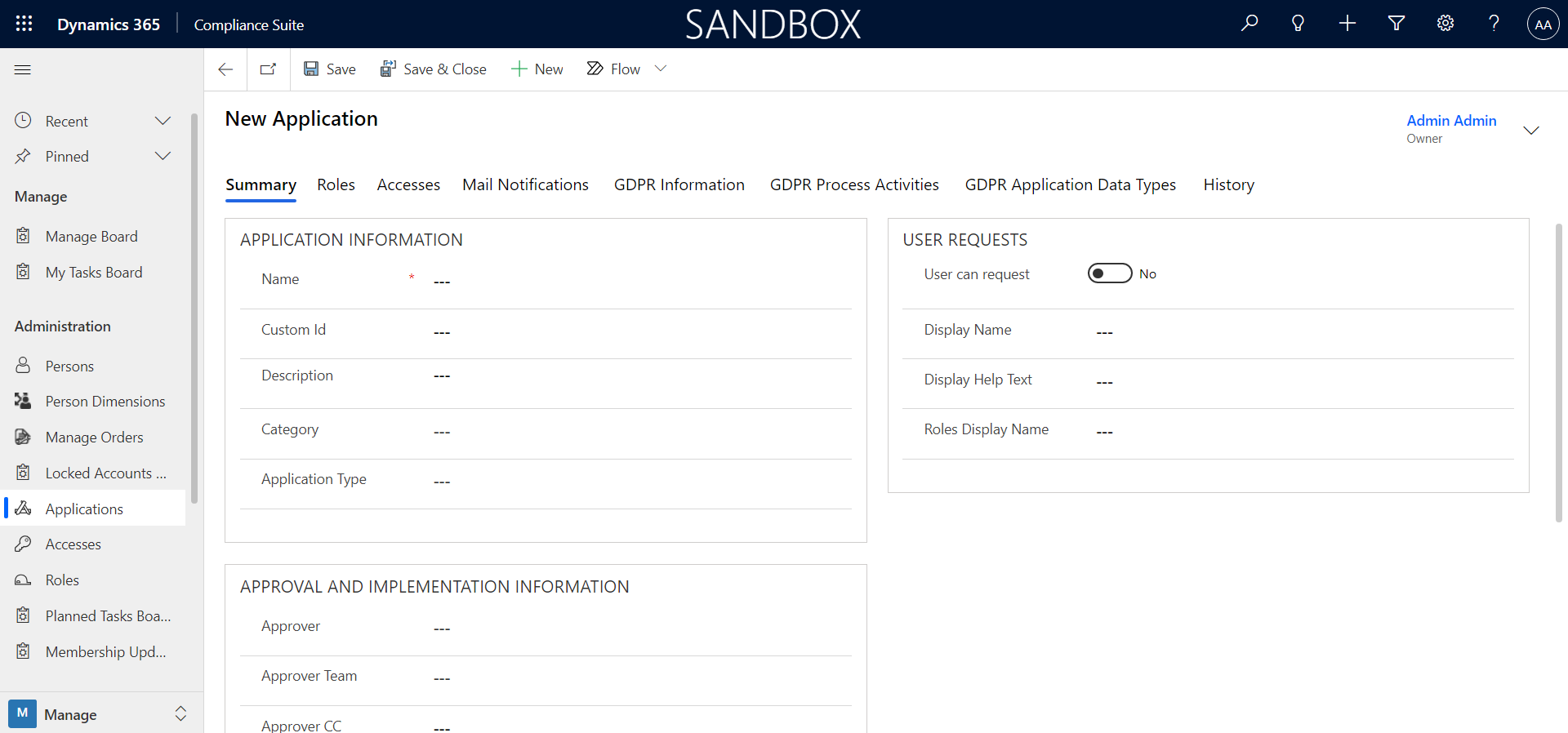
When adding a new application, the following should be taken into consideration:
-
Name, application type, and description
-
Roles (separate tab) for creating access levels (e.g. user, administrator, accountant, etc.) are represented by roles.
Assignment of roles will automatically follow the authorization flow set up on the application:
-
Approver specifies a Dynamics 365 user who must approve access to a role in this application. Alternatively, an Approver Team can be specified instead (if this field is filled, the value for Approver is not used).
-
Approver BC and Approver CC specify one or more additional recipient e-mail addresses on all set-up e-mail notifications sent in connection with requests for approval or renewal
-
Implementer/Implementer Team/Implementer BC, Implementer CC determines which user or team should deploy the access and later remove a deployed access.
How to use the fields on an application
| Field name | Value examples | Description |
|---|---|---|
Name |
ESDH-system |
The name of the application |
Custom Id |
1 |
Possibly. ID number of the application |
Description |
ESDH is used by the organization for handling of documents |
Description of what the application is used for |
Category |
Document handling |
Value used across all entities in the Compliance Suite. |
Application Type |
Documents |
Indicates any type of application |
Approver |
Viktor Brandt |
Enter the name of the person who must approve a user for the given Access to the application |
Approver Team |
Dynamics HR |
Here, if necessary. the name of the team that must approve that a user gets the given Access to the application. |
Approver BC |
Lars Mogensen |
Here the name of a possible person to be briefed. |
Approver CC |
Kjetil Berggren |
Here the name of a possible person to be briefed. |
Implementer |
Sanne Lind |
Here is the name of the person who must ensure that the person has access to the given application. |
Implementer Team |
Dynamics IT |
Enter the name of the team that will ensure that the person has access to the given application. |
Implementer BC |
Anette Bang |
Here the name of a possible person to be briefed. |
Implementer CC |
Halfdan Jørgensen |
Here the name of a possible person to be briefed. |
The history log always shows the current application for the role, and this will change backwards if you change an application for a role (it is the role that is of importance in the history log).